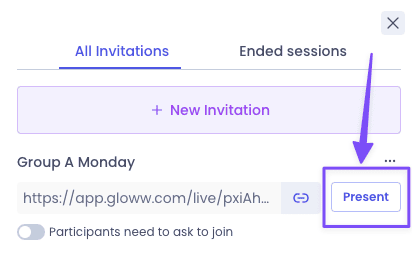
Before you begin, ensure your meeting layout is set in the editor. Review all scenes, and when you’re ready to go live with participants, follow these steps:
Starting an Online Meeting
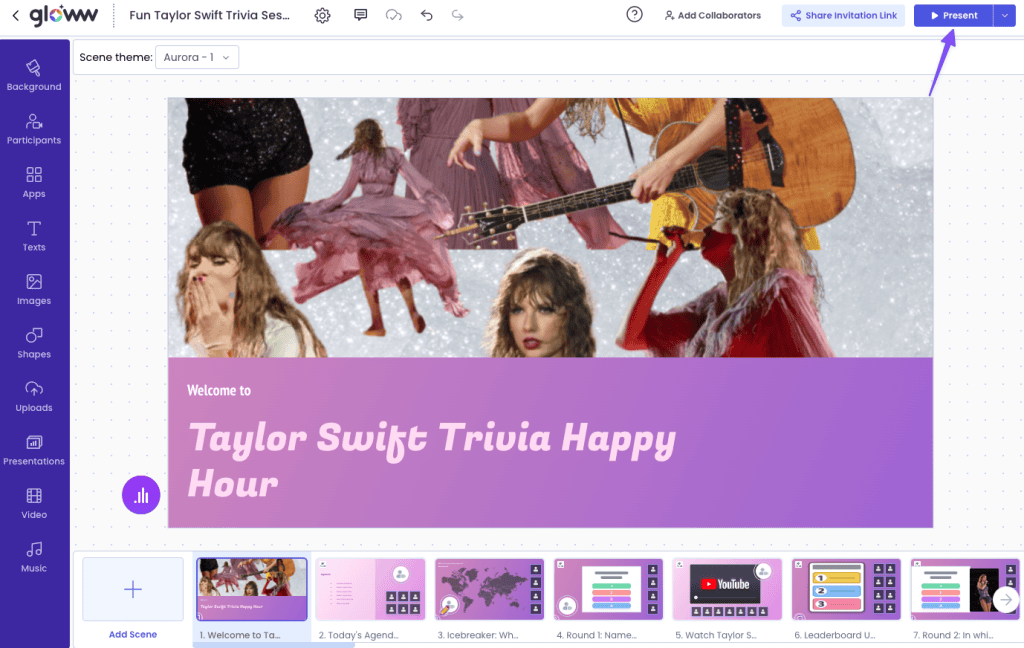
1. Click ‘Present’ in the top-left toolbar to immediately start the session.
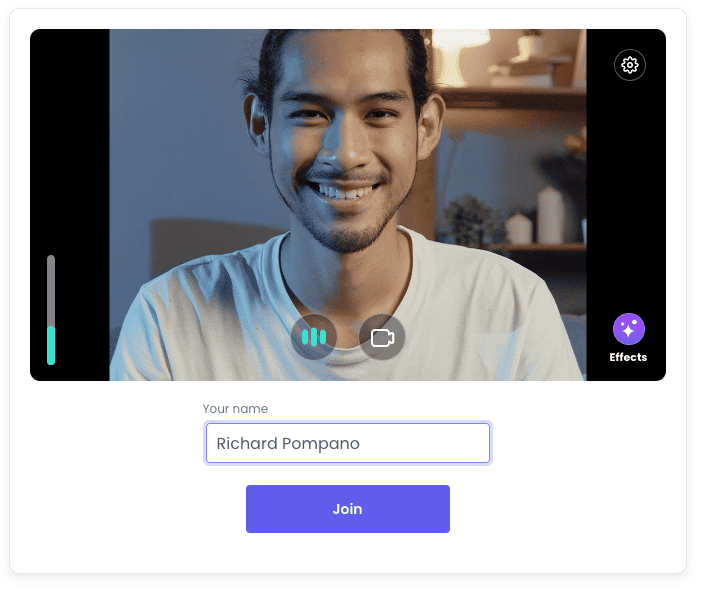
2. Enter your name and click ‘Join’.
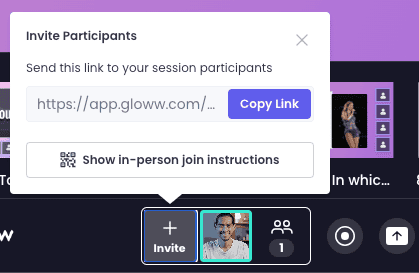
3. Click ‘+ Invite,’ copy the meeting link, and send it to your participants.
Starting an In-Person Meeting
1. Click the small arrow next to ‘Present’ in the top-right corner.
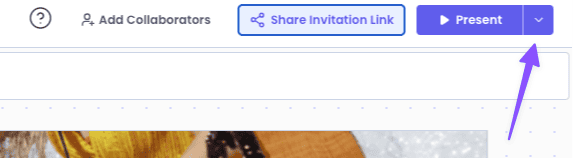
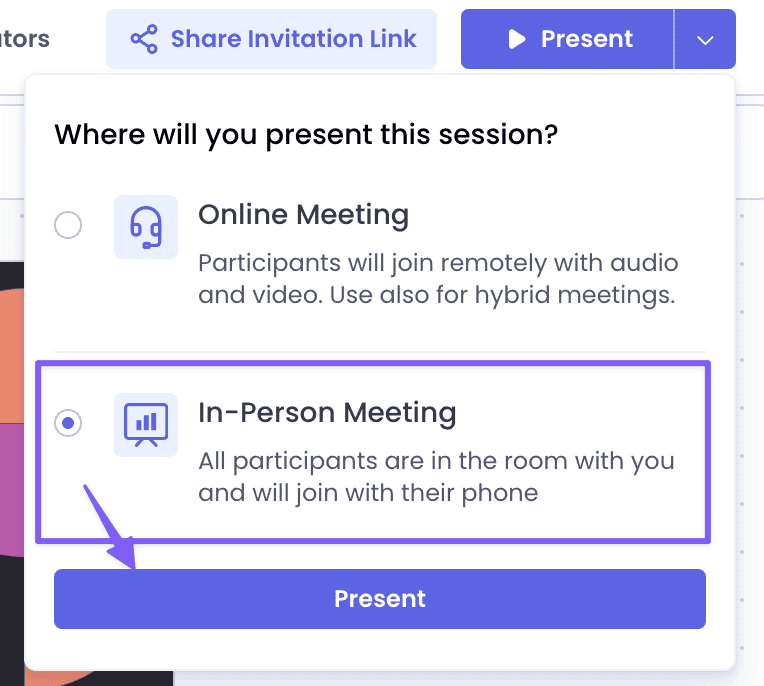
2. Select ‘In-Person Meeting’ and click ‘Present’ to enter in-person mode.
3. Share the audience window in full screen on the room’s main screen or projector.
For detailed steps on hosting hybrid and in-person meetings, please refer to the guide on hosting In-Person Meetings.
Scheduling a Meeting
1. Click ‘Share Invitation Link’ in the top toolbar.
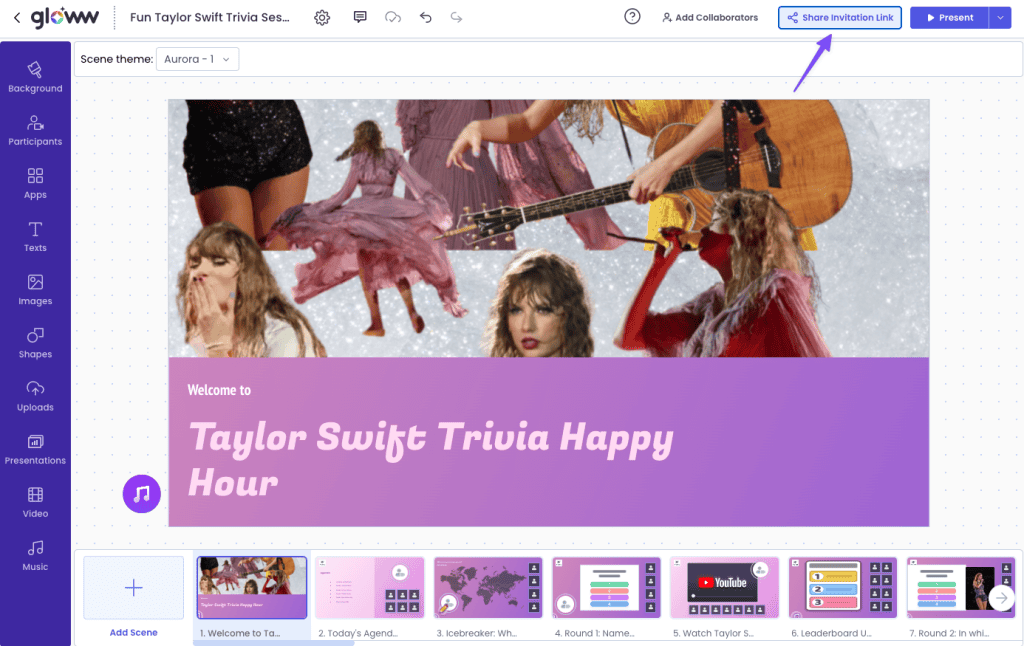
2. Click ‘+ New Invitation.’
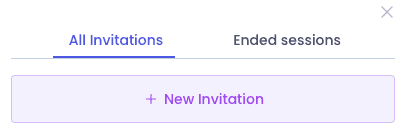
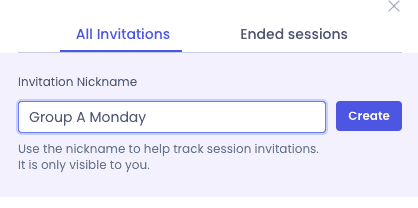
3. Name the meeting and click ‘Create.’
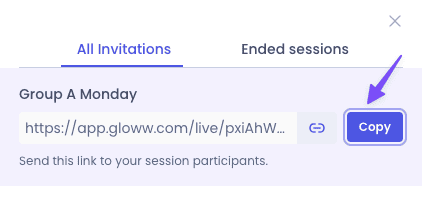
4. Click ‘Copy’ and send the link to participants via any messaging app you use. You can also include this link in the calendar invitation.
5. To start the session, click ‘Present’, or paste the invitation link into a new browser window. As the host, this will start the live session.